

GERTY Overview
GERTY is CAM software that helps you program custom fabrication with robotic arms. This page introduces GERTY and explains the layout and controls that all its components share.
1. What is GERTY?
Section titled “1. What is GERTY?”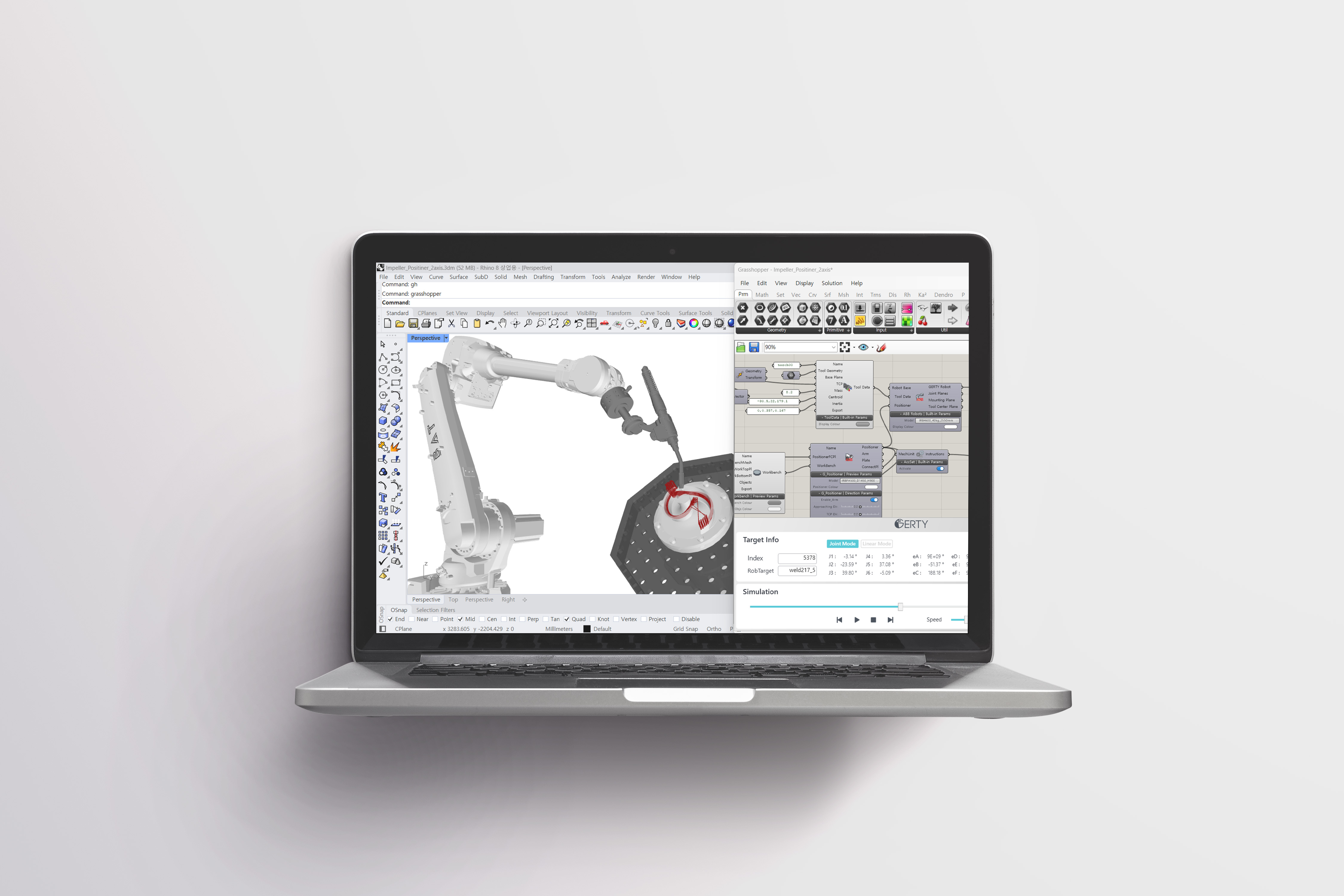
GERTY is a software framework that runs in Rhino–Grasshopper. It plans and generates additive and subtractive toolpaths that fit the robot arm and its external axes, simulates the motion in 3D, and writes the robot control program: an offline programming (OLP) solution for the robotic custom-manufacturing systems from BAT Partners.
Robot machining motions can be optimised intuitively from CAD data. Because it uses Grasshopper’s visual programming interface, you can build custom toolpaths without writing code.
GERTY fully supports ABB multi-axis robot arms and external axes today, and support for other industrial and collaborative robot makers such as Kuka, Fanuc, Hyundai, Universal Robots and Yaskawa is being built.
2. Component layout
Section titled “2. Component layout”GERTY components follow the structure of Grasshopper components. Connect the inputs, choose the settings in the GERTY UI, and the result goes out through the outputs.
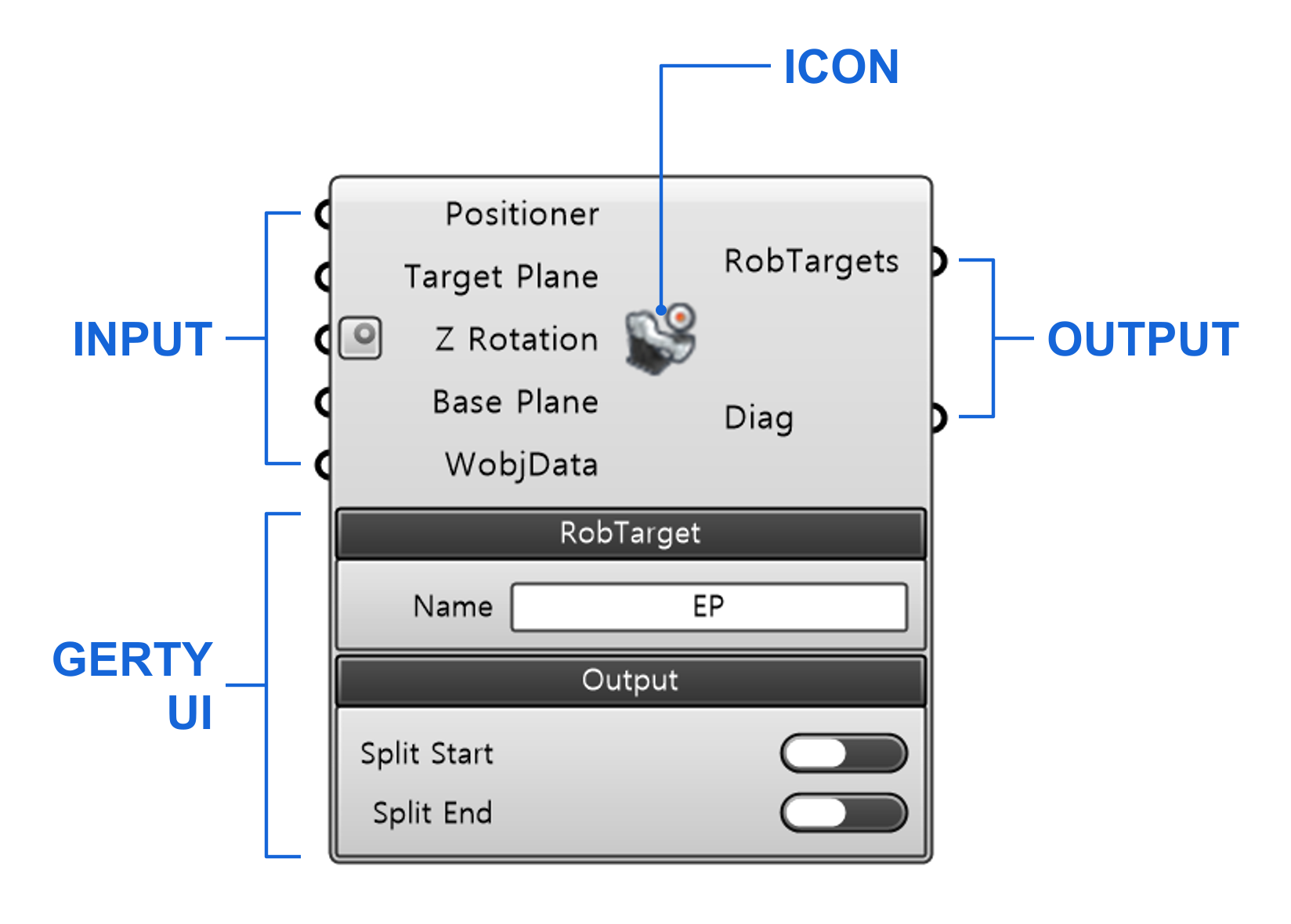
| Part | What it does |
|---|---|
| INPUT | Connect Rhino or GERTY components, or type values in. |
| ICON | Right-click it to open the context menu (mode options and more). |
| OUTPUT | Passes the result on to the next component. |
| GERTY UI | The settings area at the bottom of the component, split into tabs. |
3. Inputs
Section titled “3. Inputs”Some inputs are required; optional ones can be left empty.
Connect Node
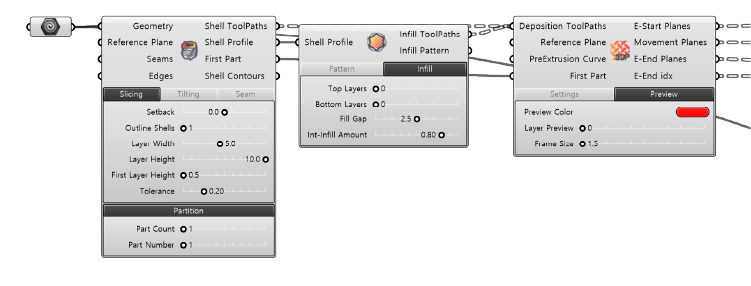
Section titled “Connect Node”Connect nodes the same way as in Grasshopper to build up the result.
Mode Option
Section titled “Mode Option”Some components can switch mode or add features from the context menu you open by right-clicking the icon.
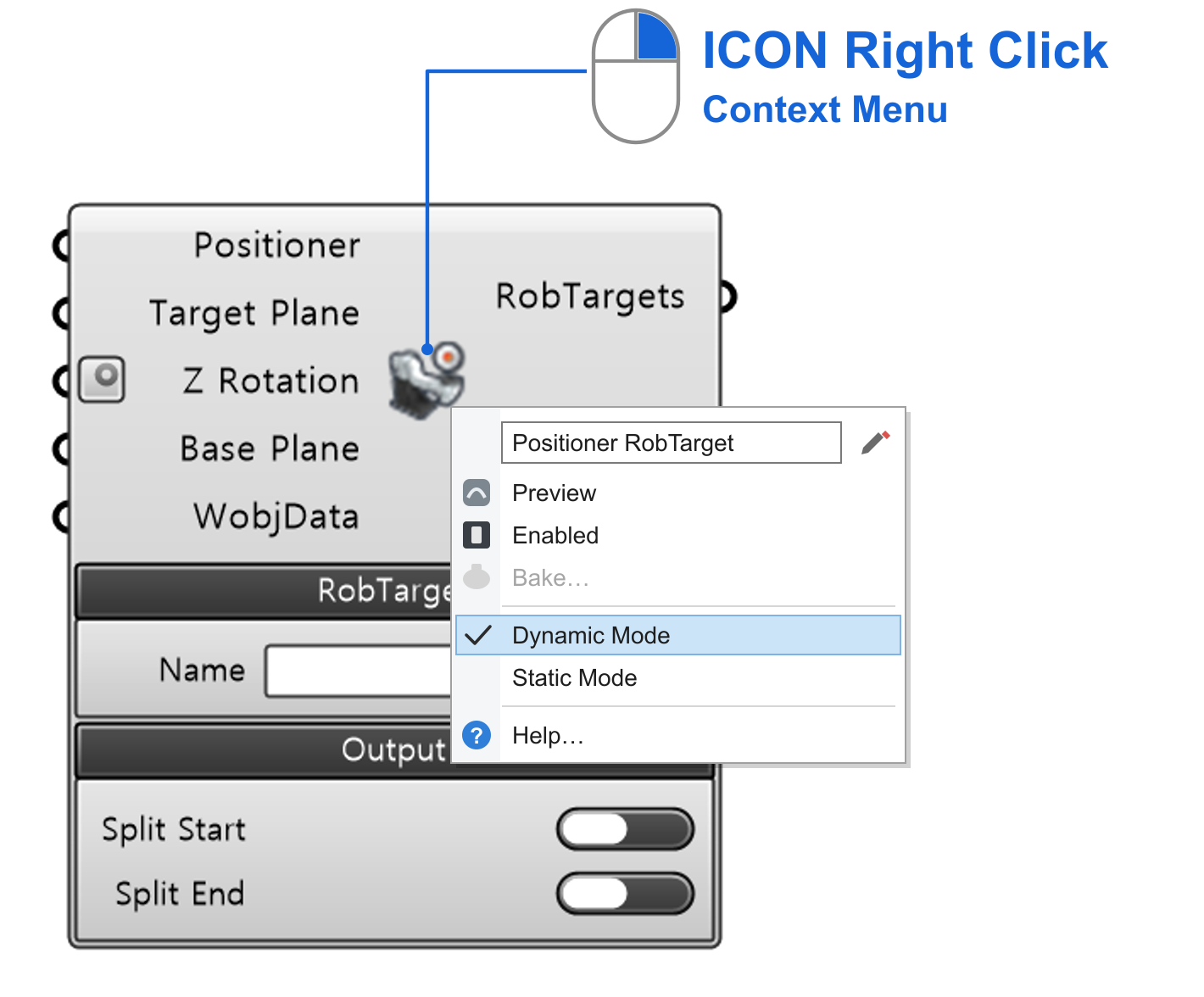
For example, Positioner RobTarget switched to Dynamic Mode looks like this.
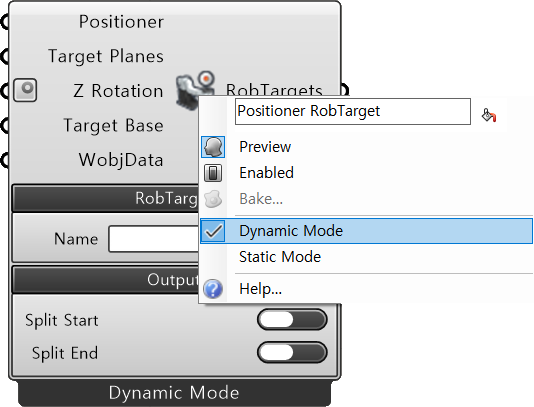
Components with mode options: ToolData · WobjData · Positioner RobTarget · SeamData · WeldData · TPSiSynergic · TPSSynergic · ABB Positioner · ABB Robots · WorkBench · Code Solver · Solid Shell · Surface Shell · RePath Tree
4. GERTY UI
Section titled “4. GERTY UI”The settings area at the bottom of a component. Every setting has a GERTY default that you can change. It uses the same kinds of elements as Grasshopper (Text, Slider, Button, Toggle, DropDown, Panel, Color), grouped by function into tabs.
Settings are grouped into tabs by function. The selected tab turns dark and its settings can be changed; required values you leave alone keep the GERTY default. Main functions use vertical tabs and their details horizontal tabs; move between tabs to set the values.
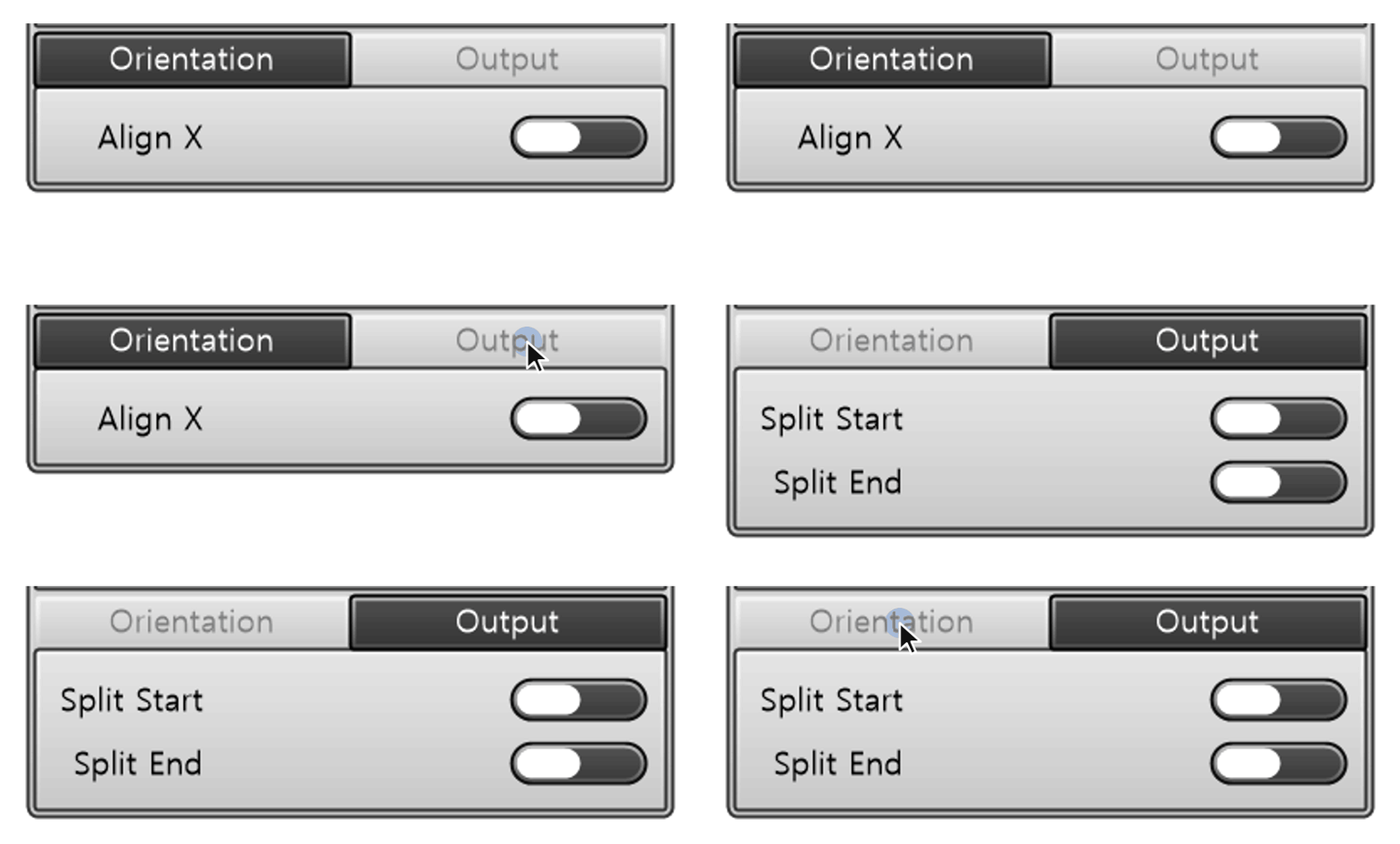
UI elements
Section titled “UI elements”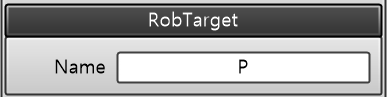 Text FieldDouble-click to type. Letters and digits only by default; each component's page gives the rules for its values.
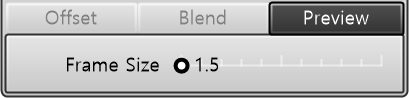
Double 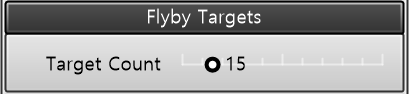
Integer SliderDouble-click the number next to it to type a value, or drag the pointer left or right. Double takes decimals, Integer only positive whole numbers.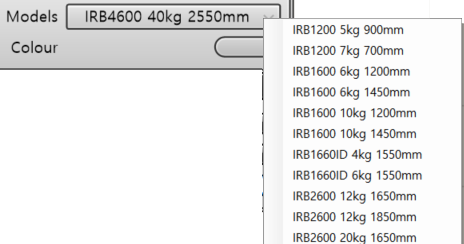 DropDownChoose a model or option that GERTY provides. For tools and workbenches, models you Export can be saved and loaded too.
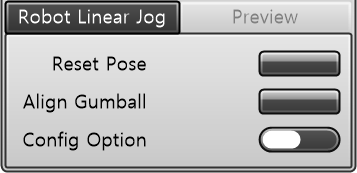 Button / ToggleA Button briefly reactivates the component; a Toggle switches its state. In some components the value (True/False) adds or removes inputs and settings.
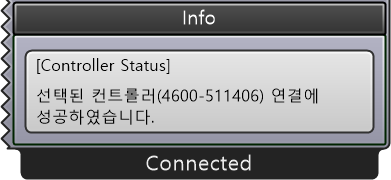 PanelShows the component's result values in a panel once it runs.
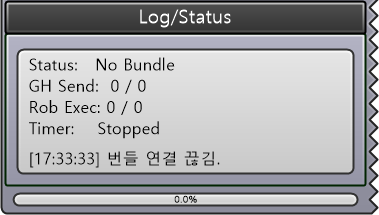 Process GaugeComponents that take a while show their progress in percent (%).
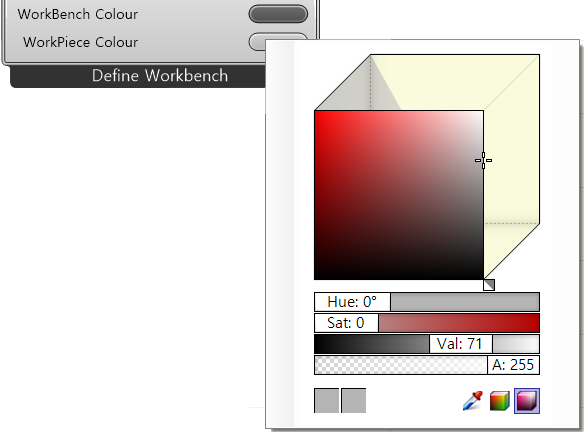 Color SwatchSets the colour of the active model or path in the simulation.